
LumenMe
How to use LumenMe
1. Getting started
- Open @LumenMeBot in Telegram and press Start. If a friend sent you their invite link, open that instead. You'll get a welcome message once your assistant is ready. Places are limited, each day and in total, while LumenMe grows. If today's are taken, press Start again tomorrow. If all early-access places are taken, the bot says so and gives an email address to join the waiting list. A friend's invite link still works then: we approve it by hand.
- Connect your email and calendar (optional, but most of LumenMe works through them):
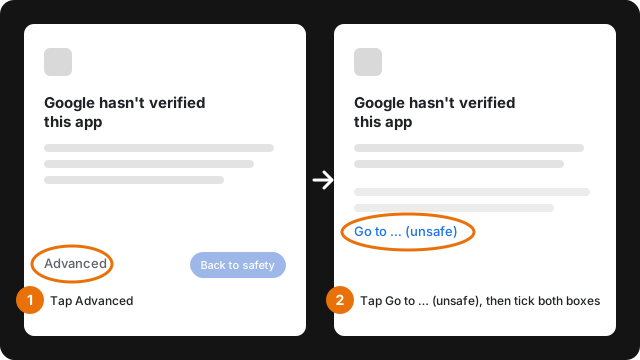
- Gmail: say "Connect my Gmail, you@gmail.com". Before you can continue, Google shows a warning, "Google hasn't verified this app". That's expected: why it appears, and the two taps that continue.
- Outlook or Microsoft 365: say "Connect my Outlook". Personal Hotmail and Live accounts use the same steps; if one doesn't connect, email us.
- Try
/todayto see your day. - Send
/setupto see what's done and what's left, with what to type for each step.
No email? You can still use LumenMe for tasks, reminders, notes, voice notes, weather and news.
After your first few days, Lumi sends one short tip at lunchtime on weekdays, about something you haven't tried yet. Send /tips off to stop them, or /tips on to bring them back.
2. Talking to Lumi
There are no commands to learn. Write the way you'd message a person, in English, Tagalog or Taglish, typed or as a voice note.
- "What's on my calendar tomorrow?"
- "Any important emails I haven't replied to?"
- "Paalala bukas ng 9, tawagan si Mama."
- "Summarize the email from Marco and tell me what he needs."
To change something you just did, reply to that message: "make it 3pm", "move this to Friday". To start fresh, send /reset.
3. Approving and undoing
Nothing goes out to email, calendar or anyone outside LumenMe without your tap. Anything that does comes as a card first, showing exactly what will happen: the recipients, the time, the text.
- Approve does it. Reject cancels it. Ignoring the card also cancels it after 30 minutes.
- If an email or invite would go to an outside domain you haven't marked as trusted, you're asked to confirm that domain first. Say "trust partner.com" to stop being asked for it.
- Want changes? Don't approve. Just say what to change ("make it shorter", "add Ben in cc") and you'll get a new card.
- Your own tasks and reminders are done right away: adding one, marking it done or reopening it, snoozing it, marking a bill paid, saving a file or link you sent to your locker, a plain note you ask Lumi to remember, and blocking someone. The confirmation has an Undo button for 3 days, for example "Added: Pay Meralco, Thu 20 Nov 9:00 am." with Undo and Edit.
- Messages and reminder requests to your LumenMe connections go right away too. The confirmation has an Unsend button for 10 minutes that takes it back out of their chat.
- Still a card: changing or deleting a task, bills from PDFs, drafts, marking emails read, calendar events, ID and passport photos, people, VIPs, trusted domains and alert rules you ask Lumi to remember, someone new or two people with the same name, more than 10 in one message or 40 in a day, and anything in a conversation where Lumi has read an email, a forward, a PDF or a screenshot (send
/resetto start fresh). - Prefer to approve everything yourself? Send
/settingsand pick Ask me for everything. "Ask only for things that leave me" is the default.
4. Email
- Read and search: "Unread emails from today", "Find the invoice from Globe last month".
- Summarize: "What does Ana want?" Lumi gives the key points, dates and amounts, and what you need to do.
- Reply and draft: "Reply to Ana: Friday works", "Draft a polite no to the sponsorship request". Drafts land in your Drafts folder; replies are sent when you approve.
- Send later: "Send this to the team Monday 8am". See scheduled emails with
/scheduled. - Tidy up: "Mark the newsletters as read".
- Several mail accounts: Personal includes one, Pro up to 3 and Power up to 5, Gmail or Outlook. Connect each one; Lumi searches all of them and says which account an email is from.
5. Calendar
- "What's my day like?", "Am I free Thursday afternoon?"
- "Find 30 minutes with Ben next week" (Lumi checks your free time).
- "Book lunch with Ana Friday at noon", "Move my 3pm to 4", "Decline the 5pm invite".
- About an hour before each meeting, a short brief: the time, where, anything to watch and the one decision to make. Tap Open full prep for who's coming, recent emails, talking points and logistics. A second heads-up with the join link comes just before it starts.
6. Tasks and reminders
- Tasks: "Add a task: renew passport, high priority, due end of month". See them with
/tasks. - Reminders: "Remind me to pay rent every month on the 30th at 9am", "Remind me in 2 hours to call the bank".
- Deadlines: "Remind me about the BIR filing a week before, three days before and the day before".
- Nagging: add "keep reminding me until I'm done" and Lumi follows up.
Each reminder has buttons: Done, Snooze (30 minutes or 1 hour), Tomorrow 9:00 am and Reschedule. If you don't tap anything, it reminds you again.
Tasks and reminders for yourself are saved straight away; tap Undo on the confirmation to take one back. A reminder for someone you're connected with on LumenMe goes straight away too, with Unsend for 10 minutes; someone new gets a card first.
7. Quick capture
Send Lumi material and it becomes a task or reminder right away, with Edit and Cancel (a card instead if you chose "Ask me for everything" in /settings):
- Forward a message from any chat.
- Send a screenshot of a message, a post or an invite.
- Send a voice note with what you need to remember.
A screenshot of a message, post or invite becomes a task. A photo of a receipt or document asks what to do: Save to locker or Read it. Several photos sent at once get one question for all of them (see Several photos at once).
Add a caption or reply to say when ("remind me tomorrow at 10"). The confirmation has Edit and Cancel buttons; reply to it to change the time or title.
8. Bills and statements
- Send a bill or credit card statement as a PDF. Lumi reads the amount, due date and charges, saves the bill, and offers a reminder three days before it's due.
- Password-protected PDF? Lumi asks for the password in a separate prompt, removes your reply from the chat, and remembers it for that issuer. Send
/forget_pdf_passwordsto clear them. - Some bill emails from Philippine billers and banks come with an offer to read them: reply "read it".
- Ask "Which bills are due?" or "How much have I paid Meralco this year?". Say "paid the Meralco bill" to mark it paid. See them with
/bills.
Document locker
Keep photos and files you often need, like your passport, IDs, OR/CR or a bill, and get them back in seconds.
- Save: send the photo or file with "save as my Meralco bill" (or "itago mo 'to"), or reply "save this as my license" to one you sent before. Reply "save it" to a photo and it's saved right away, with Undo. Tap Rename on the confirmation and reply with a new name. An ID or passport photo still gets a card to approve. Lumi doesn't read what's in it when saving (only when you ask it to read it later).
- Save or Read: send a photo of a receipt, bill, statement or other document with no caption and Lumi asks what to do. Save to locker keeps the photo in your locker. Read it tells you what's in it and adds any to-dos as tasks. You can also type "save it" or "read it" within 10 minutes.
- Get it back: "send me my passport" or "yung Meralco bill ko". It's sent only into your own chat; forward it yourself if someone needs it.
- Links: paste a link (a shared doc, a report, a booking page) and say "save this link as CFO assessment". "Send me the CFO assessment" sends the link back here.
- See, rename or remove:
/documentslists them; "rename it to CFO review" renames one; "remove my old passport" takes it out of the locker. - Read: "read my BWI evo result" or "summarise the contract I saved". Lumi reads a saved PDF or photo and tells you what's in it, with no need to send it again. An ID or passport photo is read only if you tap Read it anyway; an ID saved as a PDF isn't read out at all, but Lumi can send it back. Bank cards are never read.
LumenMe keeps only Telegram's reference to the file, not a copy. If you delete the chat, saved files may stop working; send them again to re-save.
Several photos at once
Send up to 10 photos together, as an album or one after another. Lumi waits a few seconds, reads them together and answers once, for example "Got 8 photos: 2 IDs, 3 receipts, 1 statement, 2 screenshots." Then tap:
- Save all to locker to keep them all. If there's an ID among them, you get one card listing every name to approve. Otherwise they're saved right away, with Undo all.
- Read them for what's in each one, with any to-dos added as tasks. IDs aren't read: send one on its own and tap Read it anyway if you need it.
- Not now to leave them.
When Lumi reads the photos, bank and credit cards are left out: it doesn't read them or save them. Reading a set of photos uses 1 AI step, Read uses 1 more, and saving uses none. Out of AI steps for the day? Lumi doesn't read them but still offers to save them with plain names like "Photo 16 Nov (3)", after one Approve tap.
Add a caption to the album to skip the question: "save these" saves them all without reading them, after one Approve tap, and a question like "how much did I spend?" reads them and answers it. No time to tap? Type "save all" or "read them" ("i-save lahat", "basahin lahat") within 10 minutes.
9. Email alerts
Lumi tells you about important new mail as it arrives (checked every 10 minutes, 7:00 am to 10:00 pm).
- Your own rule (Pro and Power): "Only notify me for urgent emails sent directly to me, no promotions." Lumi judges new mail against it. Say "turn off smart alerts" to go back to the default.
- Always notify: "Always alert me when ceo@partner.com emails".
- Keywords: "Alert me for emails about the term sheet".
10. Daily lists
| When | What | What to reply |
|---|---|---|
| 7:30 am weekdays | Morning brief: weather, meetings, important mail, replies you owe, tasks due and bills coming up | Ask about anything in it |
| 9:00 am weekdays | Needs your reply (Pro and Power): emails that ask you something | "draft all", or "draft 1 and 3, say yes to Ana" |
| 10:00 am weekdays | Still waiting on a reply (Pro and Power): emails you sent that got no answer | "nudge 2" |
| Friday 4:00 pm | Weekly review |
On Pro and Power, see either list any time with /replies and /waiting, then reply "draft 1" or "nudge 2".
11. People on LumenMe
If someone you know also uses LumenMe, you can remind them, pass a message along or ask them a quick question. People you're connected with get it straight away: the friend whose invite link you used or who joined with yours, anyone you've already messaged or reminded through Lumi, anyone who accepted your request, and the LumenMe team, if we invited you. Someone new gets your first message or reminder as a request: use their full name or @username so Lumi finds the right person. If you joined with Start on your own, someone new gets a connect request from you instead (see below).
- Remind them: "Remind Lex to send the contract tomorrow at 9". They get a card to Accept or Decline, or to ask for a different time, and you're told when they finish or snooze it. To someone you're connected with it goes right away, with Unsend for 10 minutes.
- Tell them something now: "Tell Lex the client moved the meeting to 3pm" or "sabihan si Lex na…". To someone you're connected with it goes right away, and the confirmation ("Sent to Lex: ...") has Unsend for 10 minutes. It arrives in their LumenMe chat, and they can reply to it. Replies go back and forth without approval cards, since each of you writes your own.
- Same first name: if two people you're connected with share a first name, Lumi doesn't guess and asks on a card. It shows one button per person, for example "Send to Maria Santos (@msantos)", and your tap picks who it goes to.
Connect with someone you know
- Send a connect request: type
/connect @lanceor/connect Lance Cruz, or say "connect me with @lance" or "i-connect mo ako kay @lance". Use their Telegram @username or their full name. A first name alone isn't enough for someone new. - Check, then send: Lumi asks "Send a connect request to @lance?" with Send request and Cancel. They see your name (with your title and company, if you've added them in /profile), your @username, when you joined LumenMe and whether you joined with an invite. They never see a message, your mobile number or your email.
- If they say yes: you're connected, and Lumi tells you here. Then "Tell Lance the meeting moved to 3pm" or "Paalalahanan mo si Lance bukas 9am" goes straight to them. Either of you can tap Disconnect any time.
- If they say no: you're told right away, and new requests to them won't go through for 30 days. If there's no answer within 7 days, or nobody on LumenMe matches the name, you get the same note after 7 days. If they're not on LumenMe yet, send them your
/invitelink: when they join with it, you're connected automatically. - Joined with Start on your own? "Tell @lance ..." or "Tell Lance Cruz ..." to someone you're not connected with sends them a connect request, not your message. Once they say yes, ask again. You can send up to 3 connect requests a day, with up to 10 waiting for an answer.
- Someone wants to connect with you: you get a card with their name (and title and company, if they've added them), @username, when they joined and whether they were invited, and the buttons Connect, No thanks and Block. Connect is all it takes. A reminder comes once after a day if you haven't answered, and the request closes after 7 days. With "Only people I know" in
/settings, connect requests don't reach you.
Ask a question or run a quick poll
- Ask: "Ask Lex: coffee or tea?", "Ask Lex and Bea which works, Thu 3pm or Fri 10am", "Ask Lex, Bea and Marco if they can make the Friday offsite", "Ask Bea what she wants for lunch, by 11am", or in Taglish, "Tanungin mo si Lex kung kape o tsaa".
- Check, then send: Lumi shows a card with the question, the choices and when it closes. Nothing goes out until you tap Approve. Asking people always shows this card, whatever your approval setting in /settings.
- How they answer: each person gets the question in their own LumenMe chat and taps an answer (or Not sure, or Pass), or replies in a few words if you asked an open question. They can change their answer until it closes.
- Only you see the answers. The people you ask never see each other's names or answers. If you ask more than one person, they only see how many others you asked.
- Your results: asking one or two people, each answer comes to you as a short message. Asking three to five, you get one results card that updates as answers come in. When everyone has answered, or the question closes, you get a summary.
- When it closes: when everyone has answered, at the time you gave ("by 11am"), or after 3 days. Tap Close now to close it early. Tap Remind the rest once, an hour or more after asking, to nudge only the people who haven't answered.
- Who you can ask: up to 5 of your LumenMe connections at a time. For someone you're not connected with, Lumi offers to send a connect request instead and never sends them your question. There are no saved groups, so name each person.
Who can message you
- Requests from new people: a first message or reminder from someone you're not connected with arrives as a card with their name, their Telegram @username if they have one, and when they joined. Tap Accept, Decline or Block. If you accept, you're connected. If you decline or block, they only hear after 7 days that it wasn't accepted. A connect request is different: if you tap No thanks or Block, they're told right away that you said no for now, and a block looks exactly the same as No thanks.
- Choose who can reach you: send
/settingsand pick "New people as requests" (the usual), "Only people I know" or "Anyone on LumenMe". People you're connected with can always message you. - Block: tap Block on a request, or type "block Ana" (done right away, with Undo). A blocked person can't message you, reply to you or send you reminder requests, and isn't told.
/blockedlists them with an Unblock button, or type "unblock Ana". - Report: when you block from a request, "Report and block" also sends that message (for a connect request, just who sent it) to the LumenMe team so we can look into it.
Your business card
Keep your work details in one place and share them as a card you forward yourself.
- Set it up with
/profile: it shows your card details. Change one with/profile title Growth Director,/profile company Acmeor/profile mobile +63 917 123 4567. The fields are name, title, company, email, mobile, website, linkedin and bio (up to 160 characters). Your name starts as your Telegram name. You can also just say "change my title to Growth Director" or "palitan mo title ko ng Growth Director". - Send it with
/card: Lumi sends the card to you, in this chat: a short text and a contact file that anyone can save straight to their phone's contacts. Forward either one to whoever you like. The text ends with "Made with Lumi" and your invite link; send/card plainto leave that off. The contact file never has it. - Lumi never sends your card to anyone. Only you forward it.
- Connect requests: if you've added a title or company, a request you send with
/connectshows them next to your name, for example "Ana Reyes, Growth Director at Acme". Never your mobile number or email. - Remove it:
/profile mobile -removes one field;/profile cleardeletes the whole profile after you confirm./exportincludes it, and deleting your account deletes it.
12. Quick views
These answer instantly and don't use your daily allowance:
| Command | Shows |
|---|---|
/today | Weather, meetings, reminders, due tasks, bills this week, unread mail |
/tasks | Open tasks |
/bills | Unpaid bills |
/inbox | Latest emails |
/replies | Emails that need your reply (Pro and Power) |
/waiting | Sent emails with no reply yet (Pro and Power) |
/scheduled | Emails scheduled to send later |
/weather | Forecast at your saved location, with Open full view for a bigger page |
/setup | What's done and what's left to set up, with what to type |
/tips | Whether lunchtime tips are on; /tips off stops them, /tips on brings them back |
/news | Headlines: /news local (your country), business, tech, crypto |
/markets | The US dollar in your currency; Bitcoin, Ether and USDT |
/documents | Your saved documents |
/settings | Your city, time zone and currency, and who can message you |
/blocked | People you blocked, each with an Unblock button |
/plan | Your plan, and subscribing once paid plans begin |
/profile | Your business card details, and how to change them |
/card | Your business card as text and a contact file, to forward yourself |
/invite | Your invite link: each friend who starts using Lumi adds 10 AI steps for you, and active friends earn you both free Pro |
/help | A short version of this guide |
Full view
Some answers are easier to read on a bigger page. Send /weather, /bills or /today and tap Open full view under the answer. It opens a private, read-only page in Telegram's browser.
- Short-lived: open it within 10 minutes. Reloading works until 30 minutes after the page was made. After that it's deleted.
- Only for you: only the first browser that opens it can see it. On any other device it says the page was already opened. The message with the button can't be forwarded or saved.
- Read-only: nothing on the page sends, changes or saves anything. To change something, tell Lumi in the chat.
- Done early? Tap Close page and it's deleted right away.
- Check the address: real LumenMe pages are only on view.lumenmeai.live, and they never ask you to sign in, pay or type a password.
For now, Full view works with /weather, /bills and /today. Before a meeting, tap Open full prep under the hour-before brief for the details. Today's page shows how many emails are unread, not what they say. You can forward the short brief; the prep link stays private.
Your city and time zone
Send /settings to see where Lumi thinks you are. Reply with your city, send /settings Austin, US, or share your location. Lumi then:
- sends reminders, the morning brief and the daily lists on your local time;
- reads and shows calendar times in your time zone;
- shows news from your country and prices in your currency.
New accounts are asked for their city once, after their first message. If the place Lumi finds isn't what you typed, or is in another country, Lumi asks "Did you mean ...?" first and changes nothing until you say yes. Moved or travelling for a while? Send /settings again.
13. What Lumi remembers
- Preferences: "Remember that I don't take meetings before 9".
- People (Pro and Power): "Remember Ana is our lawyer at Reyes Law, very important". Lumi uses this to rank mail and prepare for meetings.
- Forgetting: "What do you remember about me?", then "forget that".
14. Plans
LumenMe is free while we grow. Paid plans haven't started yet: until they do, every account gets everything, and nobody is charged. When plans begin, current users get 14 days of Pro first; after that you send /plan to see your plan and subscribe with Telegram Stars, and paid plans renew every 30 days until you cancel in Telegram Settings, My Stars. An "AI step" is one model call; a typical message takes one to three, and a voice note uses one more to turn it into text. Send /plan to see your plan and how many of today's AI steps you've used. They reset at midnight. See the plans table.
15. Invite friends
Send /invite to get your personal link, with a button to share it. When a friend joins through it and sends Lumi their first message, you get 10 more AI steps that day (the next day if they join after 6 pm). When they use LumenMe on 3 different days, or connect their email, you both get 30 days of Pro free. Both rewards count up to 5 friends a month. If you hit today's limit, Lumi reminds you of this.
16. Privacy and control
- Your data is used only to do what you ask. It isn't sold, used for ads, or used to train AI models.
- Send
/privacyin the chat for a short summary of how your data is kept private, with a link to the full policy. /cleardeletes the messages from the last 48 hours on both sides, yours and Lumi's, including photos and files you saved (they stay in your locker), and makes Lumi forget the conversation. Your tasks, reminders, notes and saved documents stay. For older messages, use Telegram's Clear history: the ⋮ menu in the chat on Android and desktop, or tap Lumi's name at the top on iPhone./resetonly makes Lumi forget the conversation; the messages stay in the chat.- Full view pages are encrypted copies of what you asked for, kept for up to 30 minutes, then deleted.
- Disconnect email any time from your Google permissions or Microsoft apps page.
- To delete your account, say "delete my account". The privacy policy lists what is deleted and what is kept.
Details: privacy policy and terms.
17. Questions
Lumi said something is part of a higher plan.
That feature isn't in your current plan. Send /plan to see what each plan includes.
"Outlook login expired" or "not connected".
Say "Connect my Outlook" (or "Connect my Gmail, you@gmail.com") and sign in again.
Google says "Google hasn't verified this app".
That's expected. Google shows this screen for apps that read Gmail and haven't completed its security assessment yet. LumenMe will complete that assessment later. Until then you'll see this screen each time you connect a Gmail account. The screen is on accounts.google.com, Google's own sign-in page.
Tap the small Advanced link, then Go to … (unsafe) under it. "Unsafe" is the label Google puts on any app it hasn't assessed. On the next screen tick both boxes, Gmail and Calendar. If you tapped Back to safety, nothing was shared: say "Connect my Gmail" again for a new link.
Lumi never sends, changes or saves anything in your mail without your Approve tap, and you can remove access any time from your Google permissions page. Rather not? Outlook and Microsoft 365 accounts don't show this screen, and tasks, reminders and notes work without any email.
My work Microsoft account needs admin approval.
Some companies only allow apps their IT team approves. Ask your IT admin, or connect a personal Outlook account.
A reminder came at the wrong time.
Check your time zone with /settings, and send your city if it's wrong. To move one reminder, reply to it with the right time.
Something else?
Email lumenme@bayanichain.io. For payments, send /paysupport.